
Desktop USB Microphones are compact microphones that connect directly to a computer through a USB port. They combine a microphone capsule and digital audio conversion in one device. For many people, setup is simple: plug in the mic, select it in a recording app, and speak. No separate audio interface is usually needed.
Audio engineer and author Ethan Winer’s practical writing on recording supports an important point: equipment alone cannot guarantee clear sound. The following is a paraphrase, not a direct quotation: “Good placement and a suitable room matter as much as the microphone.” That principle is easy to test. Put a USB microphone near a laptop fan, and the recording may capture its steady whir. Move the mic closer to your mouth, lower the gain, and the voice often becomes clearer. Small changes count.
These microphones suit video calls, voiceovers, online lessons, and home podcasts. Some offer headphone monitoring, mute buttons, or adjustable pickup patterns. Others keep controls minimal. Check the connection, desk footprint, headphone jack, and compatibility before buying. A sleek grille is not proof of better audio. Nor is a higher price.
This guide explains how Desktop USB Microphones work, what their specifications mean, and where they can fall short. Your room still matters. A reflective desk or bare wall can color the sound, even with a capable mic. The details are practical, and occasionally less tidy than product listings suggest.
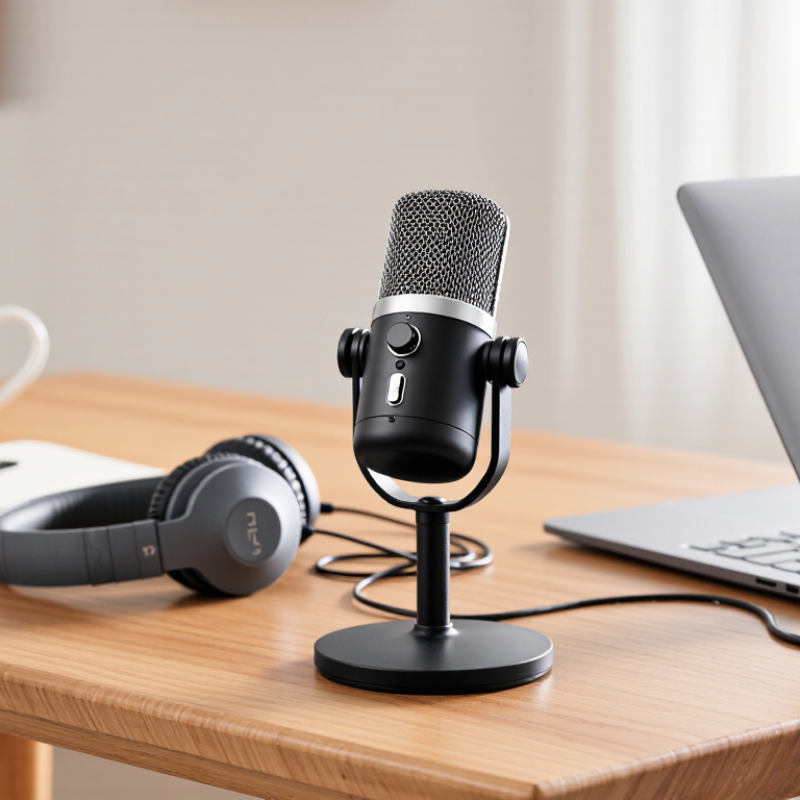
Desktop USB microphones are microphones designed to sit on a desk or attach to a desktop boom arm, then connect directly to a computer through USB. Inside the microphone, an audio converter changes sound into digital data the computer can record. Often, no separate audio interface is needed. That is the core idea.
The category covers different microphone designs, including condenser and dynamic models, with varied pickup patterns and built-in controls. Some provide headphone monitoring, mute buttons, or gain adjustment; others keep the controls minimal. Their common feature is the direct USB connection, not a particular sound or set of features. A USB connector alone does not guarantee studio-quality audio.
These microphones are commonly used for calls, voice recordings, streaming, and spoken presentations. Their scope is narrower than “any microphone used at a desk”: a headset mic or an XLR microphone connected through a separate interface is not usually considered a desktop USB microphone. In real use, placement matters. A mic several inches from the speaker may pick up a clearer voice, while a hard desk can reflect sound or transmit keyboard taps. The category is useful, though not perfectly tidy; intended use and connection type can overlap.
A desktop USB microphone captures sound and sends a digital audio signal to a computer over USB. This illustrative waveform shows normalized signal amplitude over a short time window; it is a synthesized example, not a measurement from a specific microphone.
What Are Desktop USB Microphones?
How Desktop USB Microphones Capture and Transfer Audio
A desktop USB microphone converts sound waves into digital audio your computer can record. When you speak, air pressure moves a thin diaphragm inside the microphone. The movement becomes a small electrical signal, which internal circuitry amplifies and converts into digital samples. Those samples represent the changing shape of your voice over time. That is the capture stage.
The microphone’s capsule and pickup pattern affect what it hears. A model designed for speech may capture a clear voice from a seated position, while also picking up keyboard clicks or room reflections. Distance matters: speaking close can make your voice fuller, but too close may exaggerate low tones or breath sounds. Small details matter. There is no perfect placement for every desk, so testing a few positions is often useful.
The microphone sends digital audio to the computer through its USB connection. The computer receives the samples and passes them to recording, meeting, or streaming software. Settings such as sample rate, bit depth, and input level influence the recording, though louder is not always better. If the level peaks too high, the sound can distort. If it is too low, raising it later may make background noise more noticeable. A quiet room helps, but it will not remove every reflection; that part is easy to underestimate.
A desktop USB microphone combines several parts to capture voice and send it to a computer. At its center is the capsule, which turns sound waves into an electrical signal. The capsule’s pickup pattern affects which sounds it hears best. A cardioid pattern, for example, favors sound from the front and reduces some noise behind it. Not perfectly, though. A nearby keyboard can still come through clearly.
Inside the housing, a preamp boosts the capsule’s quiet signal, while a converter changes it into digital audio. The USB connection carries that audio to a computer and may also provide power. Many microphones include a headphone jack for monitoring, plus controls for gain, mute, or headphone volume. These controls are useful when speaking, but tiny labels can be hard to read at a glance. The grille protects the capsule, and a desk stand keeps the microphone upright. Some designs add shock absorption to reduce bumps from the desk.
Placement still matters: keeping the capsule a handspan from your mouth often gives a fuller voice, while pointing it toward a noisy fan rarely helps.
I’ve found that the stand can be the weak link; a solid capsule cannot prevent every desk vibration.
Desktop USB microphones commonly use condenser capsules for sensitivity or dynamic capsules for closer, louder sources. Condenser models capture fine consonants and room reflections; dynamic models often tolerate a less controlled desk setup.
Cardioid pickup is widespread: it favors sound from the front and reduces some noise behind the capsule. It is not magic. A keyboard beside the mic can still come through clearly.
Most designs combine a capsule, preamp, analogue-to-digital converter, and USB interface in one housing. Common features include a mute button, gain dial, headphone jack, and direct-monitoring control.
The USB-IF’s USB Audio Class 2.0 technical specification includes 24-bit PCM audio formats, but the microphone itself determines which formats and sample rates are available. Many desktop models offer 48 kHz recording, a practical setting for speech and video.
Placement matters. Keep the capsule roughly a hand’s width away, then adjust gain until normal speech stays clear without clipping.
Some built-in stands transmit desk bumps, so a shock mount or separate stand may help.
Small details count. A bright status light can also distract during late-night recording.
Desktop USB microphones are commonly used for video meetings, online lessons, voiceovers, and podcast recording. They connect to a computer through USB, avoiding a separate audio interface for many basic setups. Place the microphone roughly 15–20 centimetres from your mouth, then speak across it rather than directly into it. Small adjustments can make speech clearer. Pew Research Center reported in 2023 that 35% of U.S. workers with remote-capable jobs worked entirely from home; another 41% worked hybrid. That work pattern makes reliable desk audio useful, though it does not mean every worker needs a dedicated microphone.
Convenience has limits. A USB microphone cannot remove a humming fan, nearby keyboard clicks, or echo from bare walls. Even a quiet-looking desk can sound hollow. Edison Research’s The Infinite Dial 2024 found monthly podcast listening among 47% of Americans aged 12 and older, but audience growth does not guarantee studio-quality recordings at home. Keep the mic close, lower its input level if the signal clips, and use headphones to catch noise before a call or recording. Check the cable and computer settings, too; “plug and play” is not always instant. One overlooked detail: moving the mic nearer may also capture breath sounds. A soft room and careful placement still matter.
| Use or Feature | Typical Characteristics | Practical Advantages | Limitations to Consider | Useful Setup Tip |
|---|---|---|---|---|
| Basic function | A desktop USB microphone captures sound and sends digital audio to a computer or other compatible device through USB. Many models include a microphone preamp and analog-to-digital conversion. | It can provide a straightforward recording setup without a separate audio interface. | Compatibility and available controls vary by microphone, operating system, and device. Some phones and tablets may need an adapter or may not support a particular model. | Check device compatibility and connection requirements before buying or recording. |
| Video calls and online meetings | Often used for voice communication when a computer’s built-in microphone is too distant or picks up unwanted room sound. | Positioning the microphone closer to the speaker can improve voice clarity. | It will still pick up keyboard noise, fans, and nearby conversation, depending on its pickup pattern, placement, and room conditions. | Place it near the speaker, speak toward its active side, and use headphones to reduce echo. |
| Voice-over, narration, and podcasts | Suitable for spoken-word recording in a quiet home or office, especially when the microphone can remain on a stable desk stand or boom arm. | A direct USB connection makes recording accessible without a multi-device audio chain. | Sound quality is not determined by the microphone alone. Room reflections, background noise, speaking distance, and recording technique have a major effect. | Record in a quiet, softly furnished space and keep a consistent distance from the microphone. |
| Streaming and gaming | Can capture a user’s voice while a computer handles game or streaming audio. | Many setups can be configured with common recording or broadcasting software. | Managing microphone, game, and chat audio may require software configuration. A desktop microphone can also capture mouse clicks and keyboard sounds. | Use a stable mount, position the microphone away from noisy equipment, and check input levels before going live. |
| Music and instrument recording | Can record vocals or nearby instruments, subject to the microphone’s design, pattern, and supported recording settings. | A simple USB setup can be useful for demos, practice recordings, and basic home projects. | One microphone may not suit every source or placement. More complex multichannel recording and hardware routing are generally less convenient than with a separate interface-based setup. | Test placement and input level; avoid clipping, which causes distortion in the recorded signal. |
| Monitoring and latency | Some models provide a headphone output for listening to the microphone signal; features differ between models. | Direct monitoring, when available, can let the user hear their voice without relying entirely on software playback. | Software monitoring can introduce delay, depending on the device, driver, application, and buffer settings. Not every microphone has a headphone jack or direct-monitor control. | Look for a headphone output and direct-monitor function if low-delay self-monitoring matters. |
| Room noise and pickup pattern | Pickup patterns vary. A directional pattern can reduce some off-axis sound, but it does not eliminate noise or room reverberation. | Careful placement can help prioritize the speaker over some sounds behind or beside the microphone. | Directional microphones still capture sound from the room, and nearby noise can remain prominent. | Move the microphone closer to the speaker and reduce noise at its source where possible. |
| Portability and expandability | A USB microphone usually combines several audio functions in one device and connects directly to a host. | Fewer separate components can make a compact desk setup easier to arrange. | It depends on a compatible USB host and port. Expanding to multiple microphones or changing individual parts may be less flexible than using separate microphones and an audio interface. | Consider the number of speakers, required inputs, cable reach, and future recording plans. |
Condenser models capture fine consonants and room reflections. Dynamic models often handle a less controlled desk better.
It favors sound from the front and reduces some noise behind it. A nearby keyboard can still sound clear.
Start about 15–20 centimetres away, roughly a hand’s width. Speak across the capsule, not straight into it.
Many desktop microphones offer 48 kHz recording. Available formats depend on the microphone itself.
Common features include a mute button, gain dial, headphone jack, and direct monitoring. Small controls matter.
No. A humming fan, keyboard clicks, and bare walls can still affect recordings. A quieter, softer room helps.
Use headphones to listen for noise, and lower input gain if speech clips. Check the cable and computer settings, too.
Yes. It may capture breath sounds, even when speech gets clearer. I still forget this sometimes. A small adjustment can help.
Desktop USB Microphones are compact audio devices that connect directly to a computer or other compatible equipment through a USB port. They convert sound waves into digital audio signals inside the microphone, then send those signals over the USB connection for recording, communication, or streaming. This all-in-one approach typically avoids the need for a separate audio interface, making setup straightforward for everyday users.
A typical unit contains a microphone capsule, internal circuitry for processing and converting audio, and a USB connector. Designs may include desktop stands, adjustable controls, headphone monitoring, or different pickup patterns that affect which sounds are captured. These microphones are commonly used for online meetings, voice recording, lessons, and content creation. Their convenience and ease of use make them practical for many desktop setups, though sound quality can vary, and USB connection, room noise, microphone placement, and limited upgrade options may affect results.